Two big screens, your layout
10.1″+15.6" touch screens are where most work happens. Drag windows where you want, resize them, and save layouts to flip between setups during a gig.

One AI console · iDMX
iDMX is a lighting console with two touch screens + faders and four thumb-wheels. It is very professional and easy to operate. Built-in effects make lighting programming fast and easy.
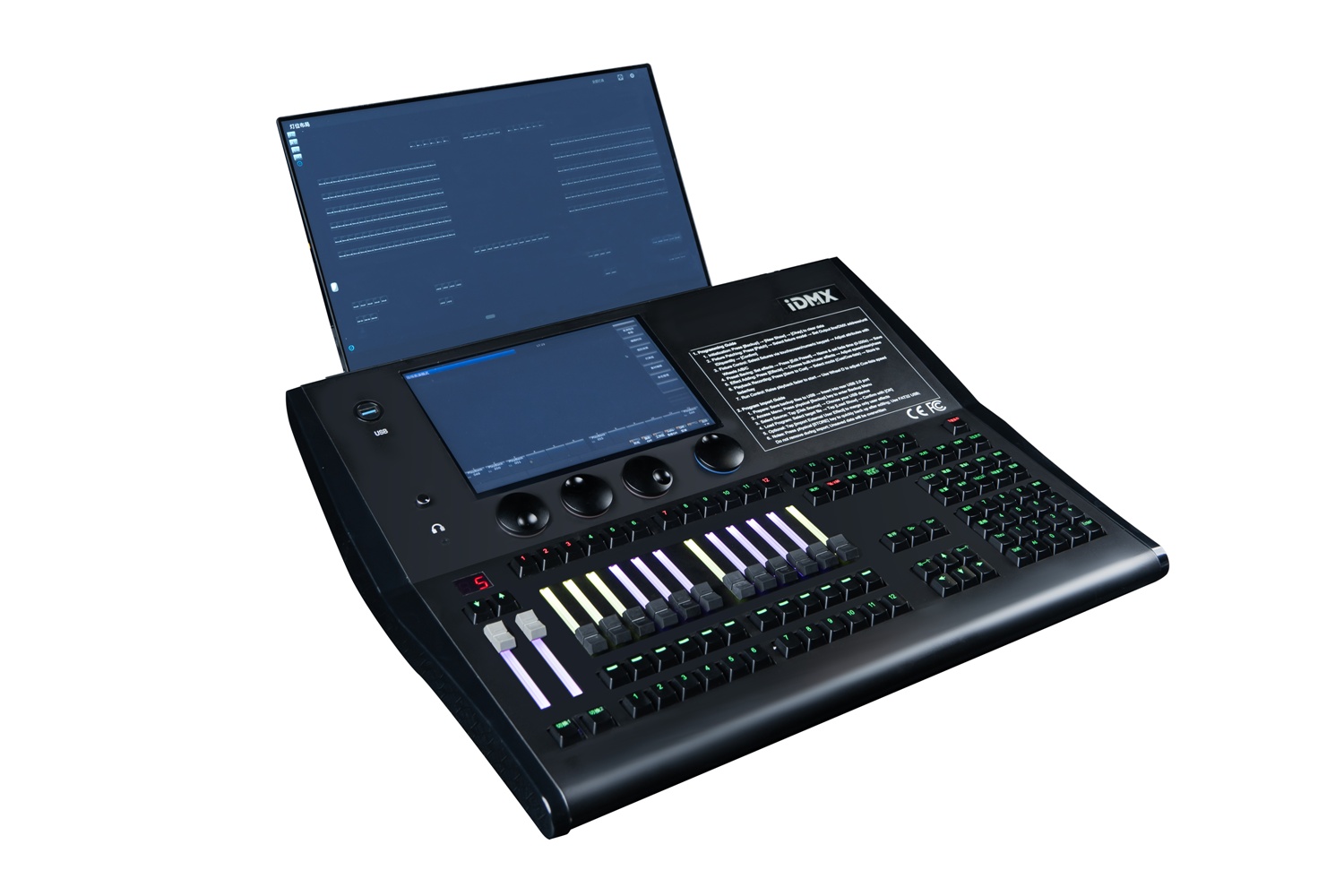
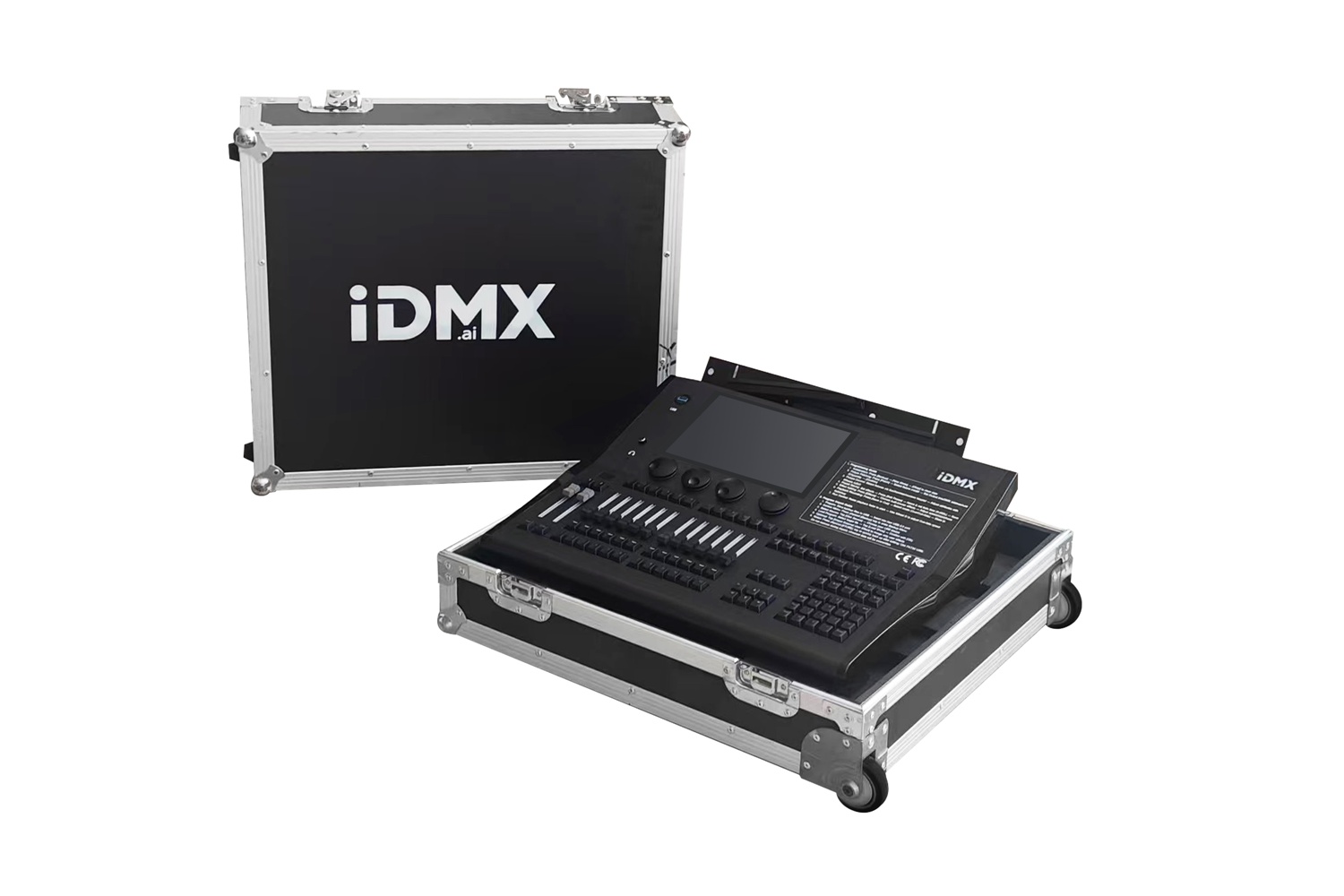
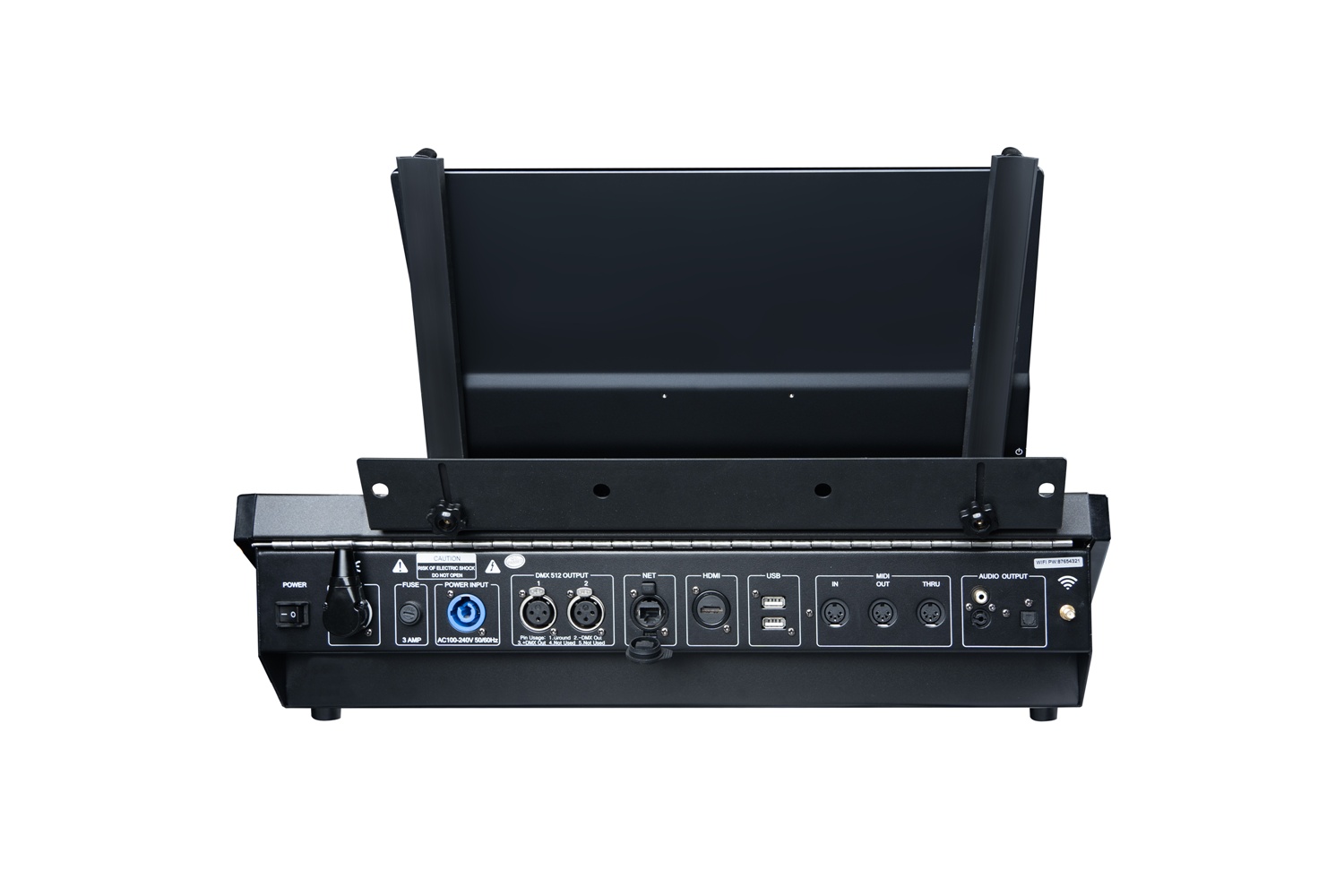
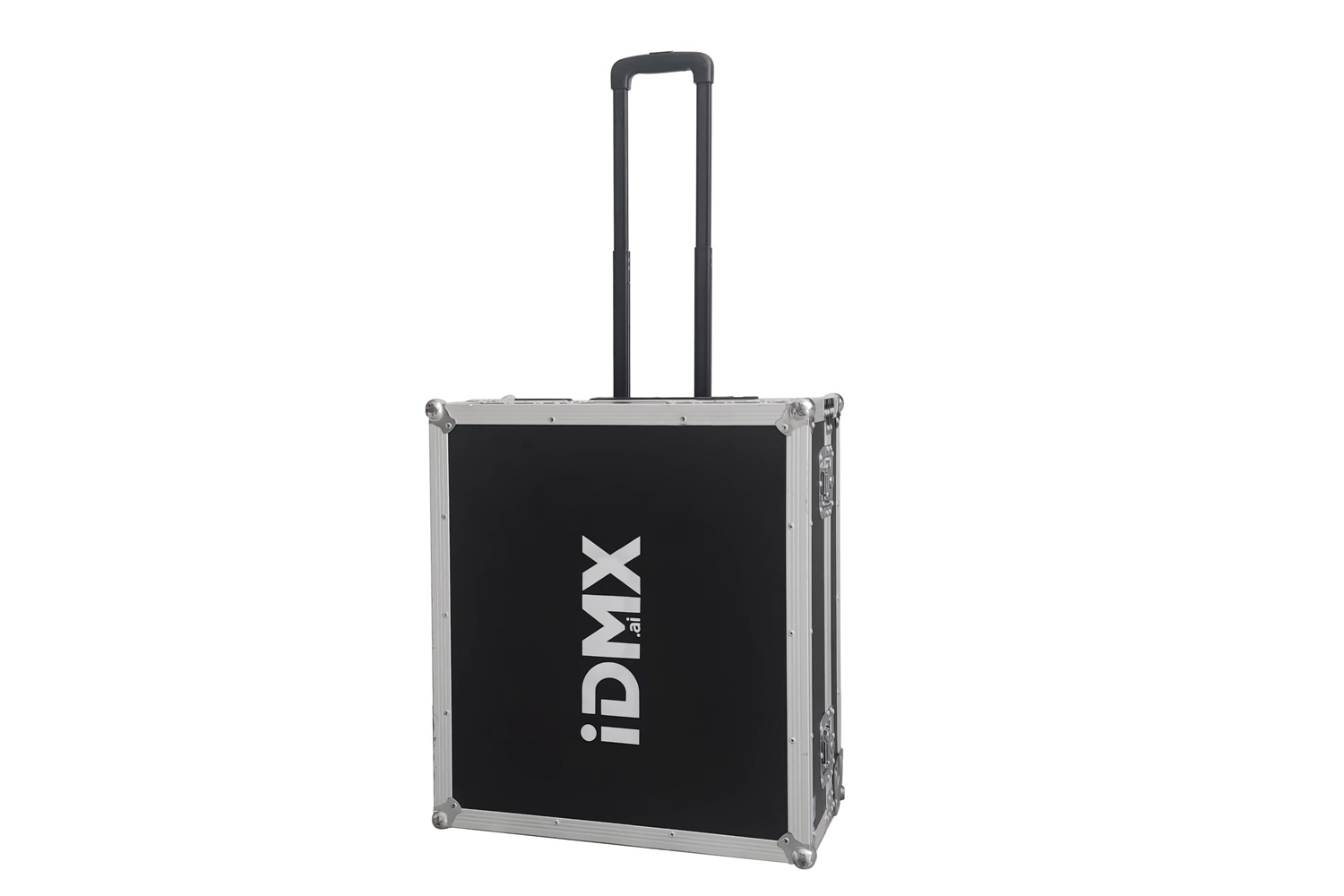
with flight case
10.1″+15.6" touch screens are where most work happens. Drag windows where you want, resize them, and save layouts to flip between setups during a gig.
iDMX can suggest free DMX addresses. RDM can help set addresses on compatible gear. You can patch up to 1000 units.
Tap lights on screen, or draw a box to grab a group. Prefer numbers? On LIVE SHOW, type a fixture number and Enter, or a range like 1 THRU 9.
[Built-in position and color effects] let program very easy and fast.[Color Picker] let color mixxing easily
80 pages, each with 12 faders and 12 keys, for storing scenes. There is light show the status of the fader
Two DMX outputs, Art‑Net over network, MIDI (including time code), Wi‑Fi for apps, HDMI for a second screen, and more.
Patch → built-in effects → save to cue → multi steps → macro show with music
Open Backup, tap [New Show], confirm. and name your file.
Press Patch, then [Patch New Fixture]. Select the light from the console system(many brands lights) or from USB, set quantity and start address (the console show the next free address automaticly). Tap [Confirm]. Repeat until every light is patched.
In the Fixtures Layout window, select the lights you want. Double‑tap Locate or press F1 / [Full] on the screen to turn them on in a default position.
1. Use the attribute keys and wheels A–C for pan/tilt, dimmer, color, gobo, prism, etc.
2. Add Effects or Color Picker for the lights—built-in position effects, color effects, and more make programming easy.
3. You can also use the [Fixture Attributes] window to draw dmx or shape to program.
Press Save to Cue. Then press a playback key (the key for a fader or a fixed playback). That stores this program on that playback.
Repeat steps 4 and 5 to build a multi-step program. (For 2nd step, Don’t forget to select the Save to Last Step button on screen.)
You can adjust each step’s time, including Delay-In, Fade-In, Out-Delay, Out-Fade, and Overlap.
Open the [Macro show], [Time Code], and [Music Player] windows. In [Time Code], select Internal Music mode as the timecode source, choose the music you want, then press Record button(in the Time Code window) to record the show with music.
Press Backup → [Save Show]. Or Press [Store] button before you turn off the console
Overview of the iDMX lighting console.
How to Program?
Step1: Patch light->select light and lightup->Program the first step->Save to Cue
Step2: Multi steps Program
Step3: Record the show
Step3: Load selected Cue - Button
Profiles for All Brands of lights
iDMX fast program by built-in Shape
What you see = What you get
How to use Presets
How to move window and adjust the size
Easy to carry case, easy and fast program
Every menu and option is explained in the PDF.